

Advanced integration
FitCast
FitCast gives your treadmill superpowers. Simply put, FitCast enables non-Zwift and non-FTMS-compatible treadmills to magically become compatible. It also enables touch-free structured workouts to control your treadmill in virtual worlds.
How does it work?
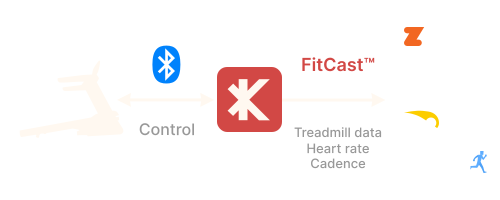
FitCast acts like a bridge between your devices and Zwift, Rouvy, BitGym, Peloton, and similar apps. This allows you to use a non-FTMS treadmill with virtual training apps while Kinni runs Custom Workouts and sends the data those apps expect.
Which devices are compatible?
Kinni is able to connect to treadmills, heart-rate monitors, and foot pods. The supported device list is always expanding; start with the devices page and the treadmill connection guide. You are able to connect any Bluetooth-enabled device to FitCast when the device exposes compatible data.
Connect your treadmillHow to get started
To use FitCast, select a Custom Workout, choose a preset workout, or simply start a just-run session.
Step 1: Connect Kinni to your devices.
Step 2: Select a workout, or just run.
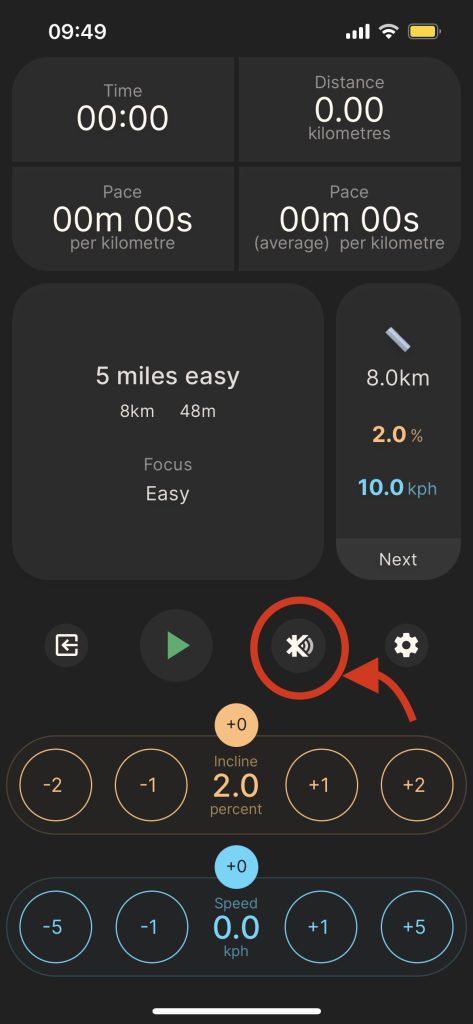
Step 3: Turn FitCast on from Kinni’s run screen.
Step 4: Then, from Zwift or another app on a different device, scan and connect to “Kinni FitCast” as a treadmill, foot-pod, and heart-rate monitor.
Kinni will now control your treadmill and send all the data through to Zwift or a similar third-party app.
Please note: if you have FitCast Battery Saver mode off, FitCast will automatically turn on when you launch the run screen.
What data is sent by FitCast?
The introduction of FitCast means Kinni can send and receive more data from devices and apps than ever before, giving runners greater flexibility and more ways to train with data.
FitCast is able to send the following data:
- Speed
- Incline
- Distance
- Time
- Heart Rate
- Cadence
- Stride length
- Calories
- Elevation